Custom No Hats GUI Tool
I know that a lot of us, including myself, like to modify no_hats to selectively remove cosmetics that we either find ugly, art-style breaking, or simply just do not fit our vision of Team Fortress 2. Until now, this process has been very tedious and complicated, requiring you to either learn an unintuitive CLI tool or painstaking modify the file tree within the no_hats vpk using GCFScape/VPKEdit.
I have found a better way.
I'd like to introduce:
Dilbertron's Custom Cosmetic Disabler
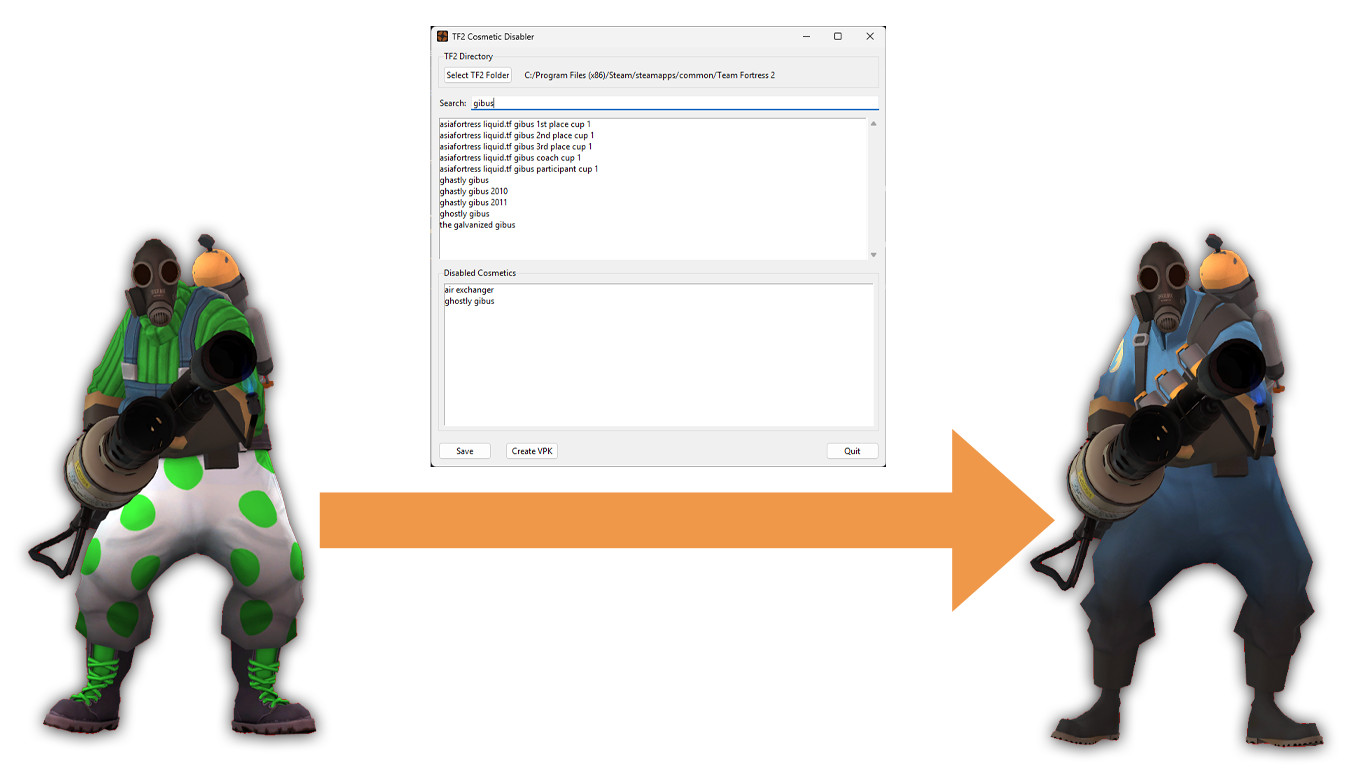
Installation
Windows
Download the latest release here and run 'Cosmetic Disabler.exe' to start the program. On first time start-up you will have to provide your 'Team Fortress 2' directory if the program can't auto-detect. Once the directory is selected the program will load every cosmetic in TF2 into a list.
Linux
Download the repository:
Code: Select all
git clone https://github.com/dilbertron2/Cosmetic-Disabler.git && cd Cosmetic-DisablerInstall Python and tkinter:
Debian/Ubuntu:Code: Select all
sudo apt install python3 python3-pip python3-tk python3-venvArch:
Code: Select all
sudo pacman -S python python-pip tkFedora:
Code: Select all
sudo dnf install python3 python3-pip python3-tkinter python3-virtualenvMake the launcher executable and run it:
Code: Select all
chmod +x run.sh && ./run.shFor subsequent runs, just use ./run.sh
Usage
Disable All Cosmetics
All cosmetics are enabled by default. To disable all cosmetics, click the "Disable all Cosmetics" button, then click "Yes".

Disable Selected Cosmetics
Use the search function to locate specific cosmetics by name. You can select an entire row of cosmetics by holding left click and dragging your cursor across their names. To select a list of Interspersed cosmetics, hold CTRL on your keyboard while clicking their names individually. To disable all selected cosmetics, click the "Disable Selected" button, then click "Yes".

Disable By Update
Click the "Modify By Update" button, select an update from the list, and either enable or disable all cosmetics from that update. Please note that the list of updates is NOT YET COMPLETE. It does not include nameless patches. I recommend using the item timeline provided by the wiki for a more comprehensive list of updates. You can also sort the list of cosmetics by date added.

Create VPK
Once you've finished disabling the offending cosmetics, either save or click "Create VPK" to create your custom no_hats. You'll then be prompted if you'd like to replace cosmetic models with stock models when applicable (read carefully). Click yes or no, then a window will appear telling you the location of your new custom no_hats. Go there, then copy and paste the Custom-Cosmetic-Disabler.vpk into your 'Team Fortress 2/tf/custom' folder.


